
Convert the Units of a Saved Recipe
Found a recipe written in cups when your kitchen scale is in grams? You can convert any recipe in your collection to Metric, US, or Imperial units. Recipe Notes shows you exactly what will change before anything is saved.
Step 1: Open Convert Units
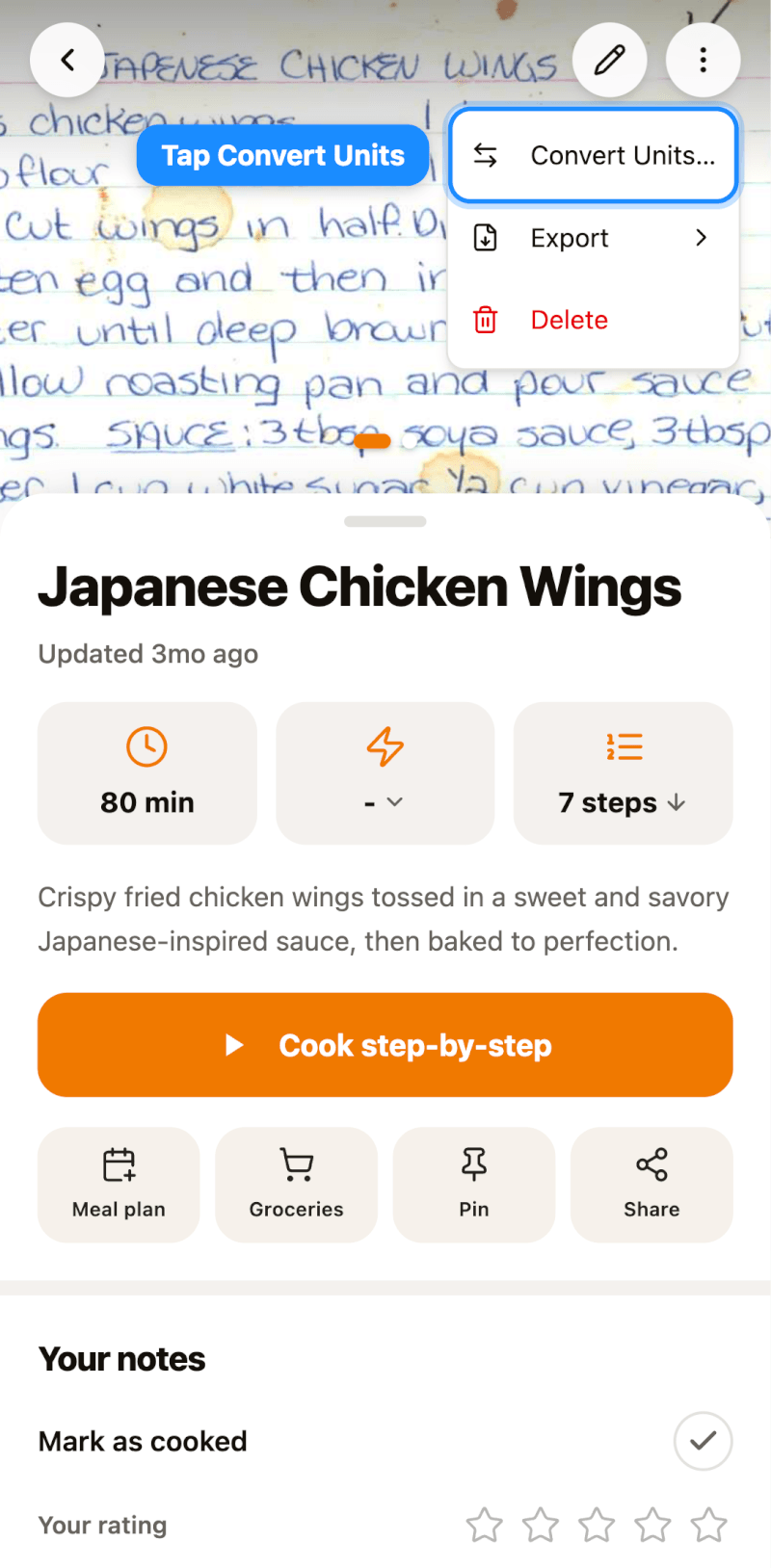
Open the recipe, tap the More menu (the three dots at the top right), and tap Convert Units….
Step 2: Choose a System and Check the Preview
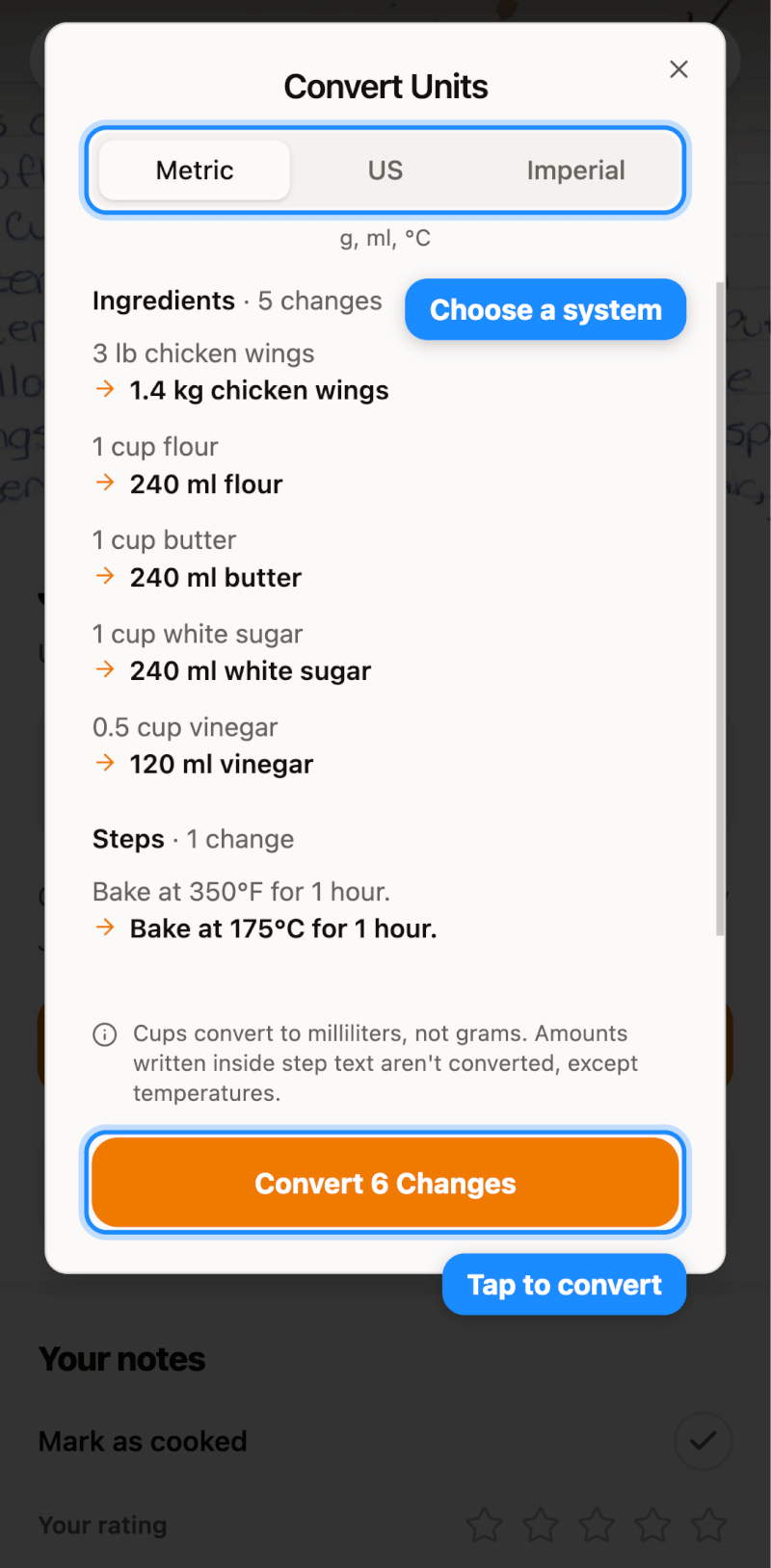
Pick Metric, US, or Imperial at the top. The preview updates to show each ingredient and step that will change, with the original above and the new version below.
If the recipe is already in that system, or its units can't be converted, you'll see Nothing to convert and no changes are made.
Step 3: Confirm the Conversion
Tap the Convert Changes button at the bottom. It shows how many changes will be made, such as Convert 6 Changes. The new units are saved to the recipe itself.
Step 4: Undo If You Change Your Mind
A confirmation appears with an Undo button. Tap it within about 5 seconds to restore the original units.
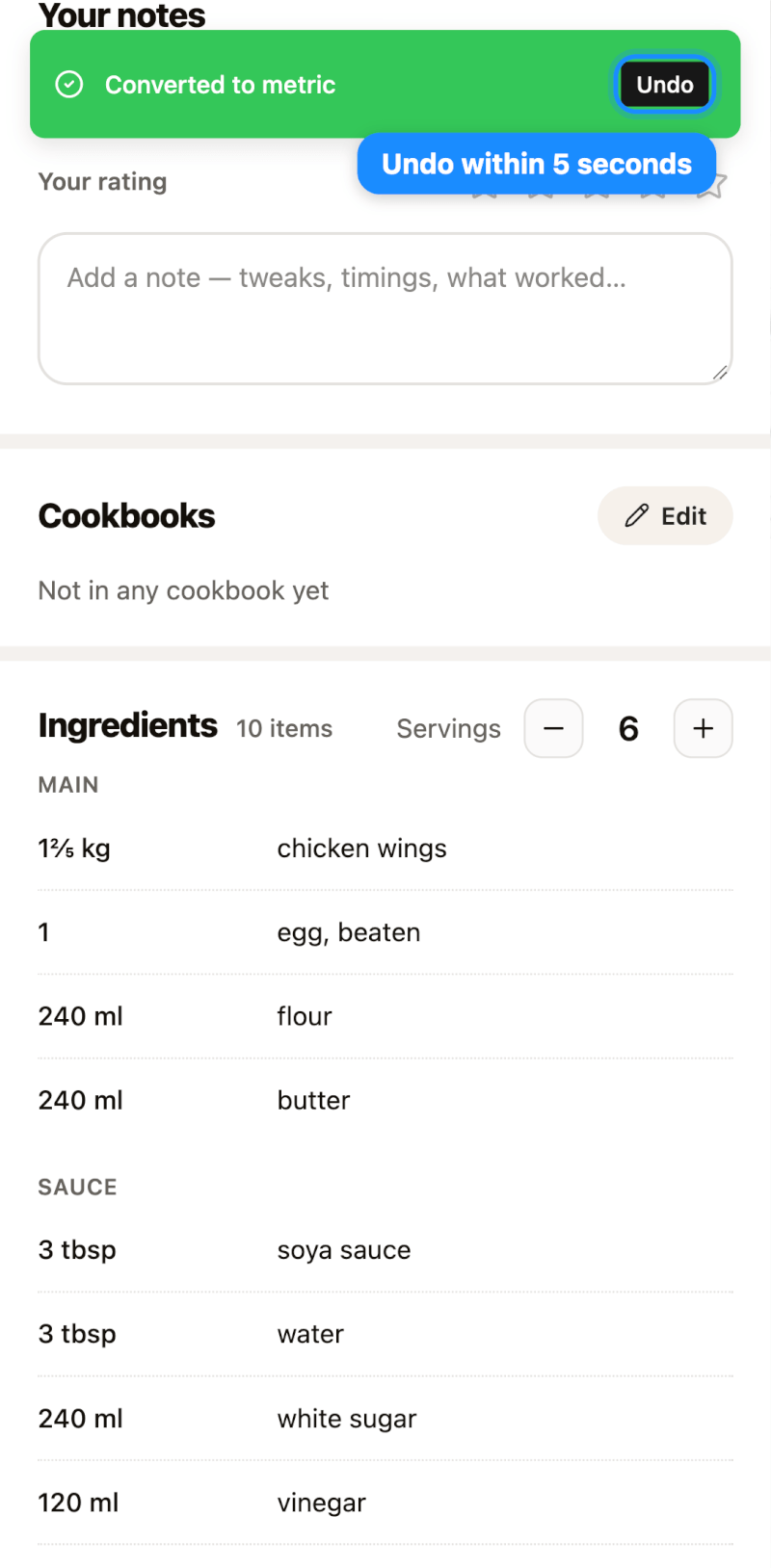
After the confirmation disappears, you can convert the recipe again or adjust the ingredients manually. Converted amounts are rounded, so converting back may not match the original exactly.
What Gets Converted
- Ingredient amounts and units are converted, unless the ingredient has no unit that can be converted, such as "1 egg".
- Temperatures in the steps are converted, such as 350°F to 175°C.
- Other amounts written inside step text stay as they are.
- Cups convert to milliliters, not grams, because the weight of a cup depends on the ingredient.
If the recipe is shared with your family, they'll see the new units too.
Want new recipes to arrive in your preferred units automatically? Set your default measurement system for imports.