
Cook One Step at a Time
Cooking mode walks you through a recipe one step at a time. Each step shows the ingredients it needs, so you don't have to scroll back to the ingredient list with messy hands.
Step 1: Start Cooking Mode
Open a recipe and tap Cook step-by-step.
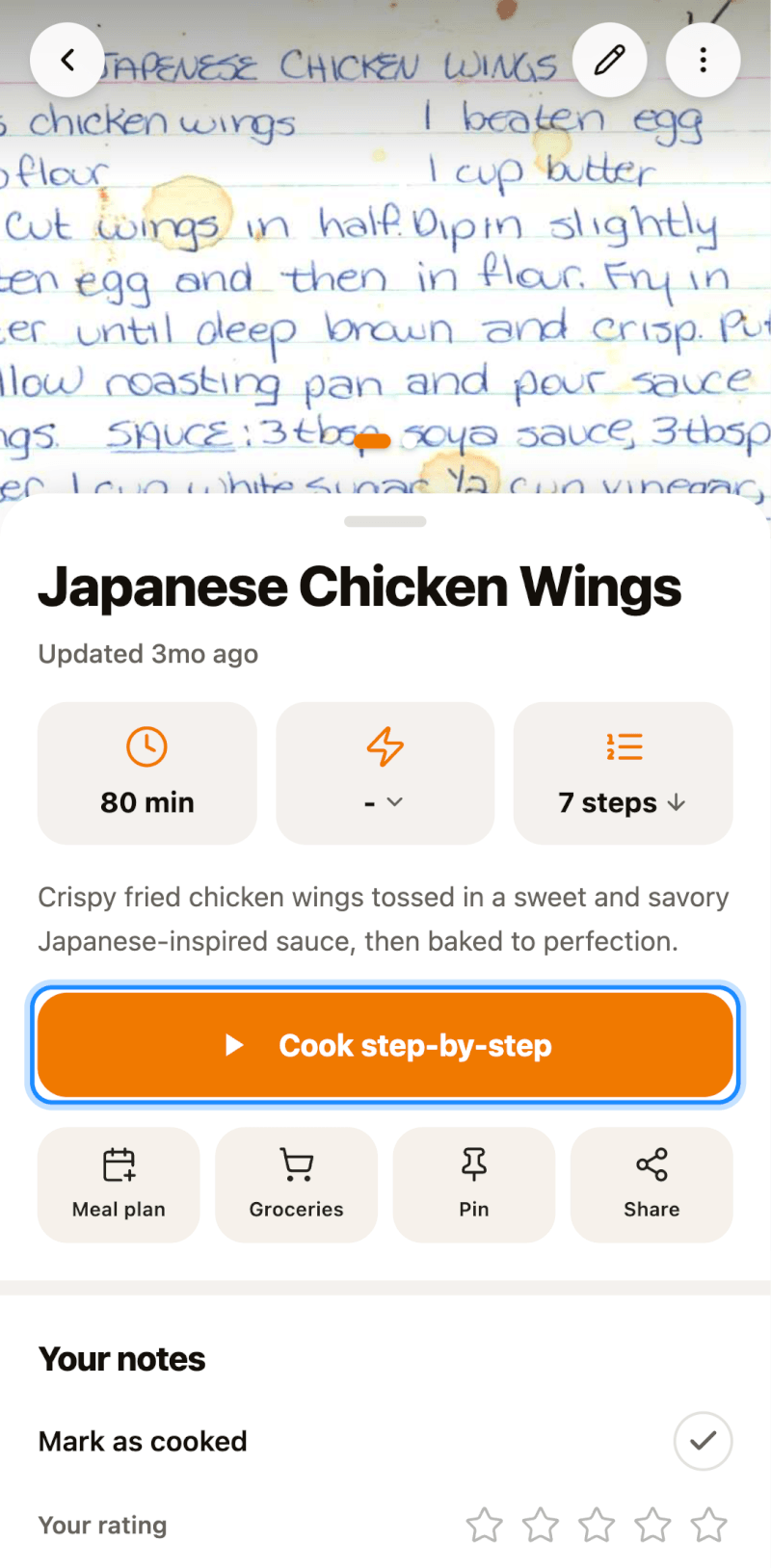
If you changed the servings on the recipe page first, cooking mode uses the adjusted amounts.
Step 2: Check Off What You Add
The For this step card at the top lists the ingredients used in the current step, with their amounts. Tap an ingredient to check it off as you add it. In the instructions below, ingredient names are highlighted, with the amount shown next to each one the first time it's used.
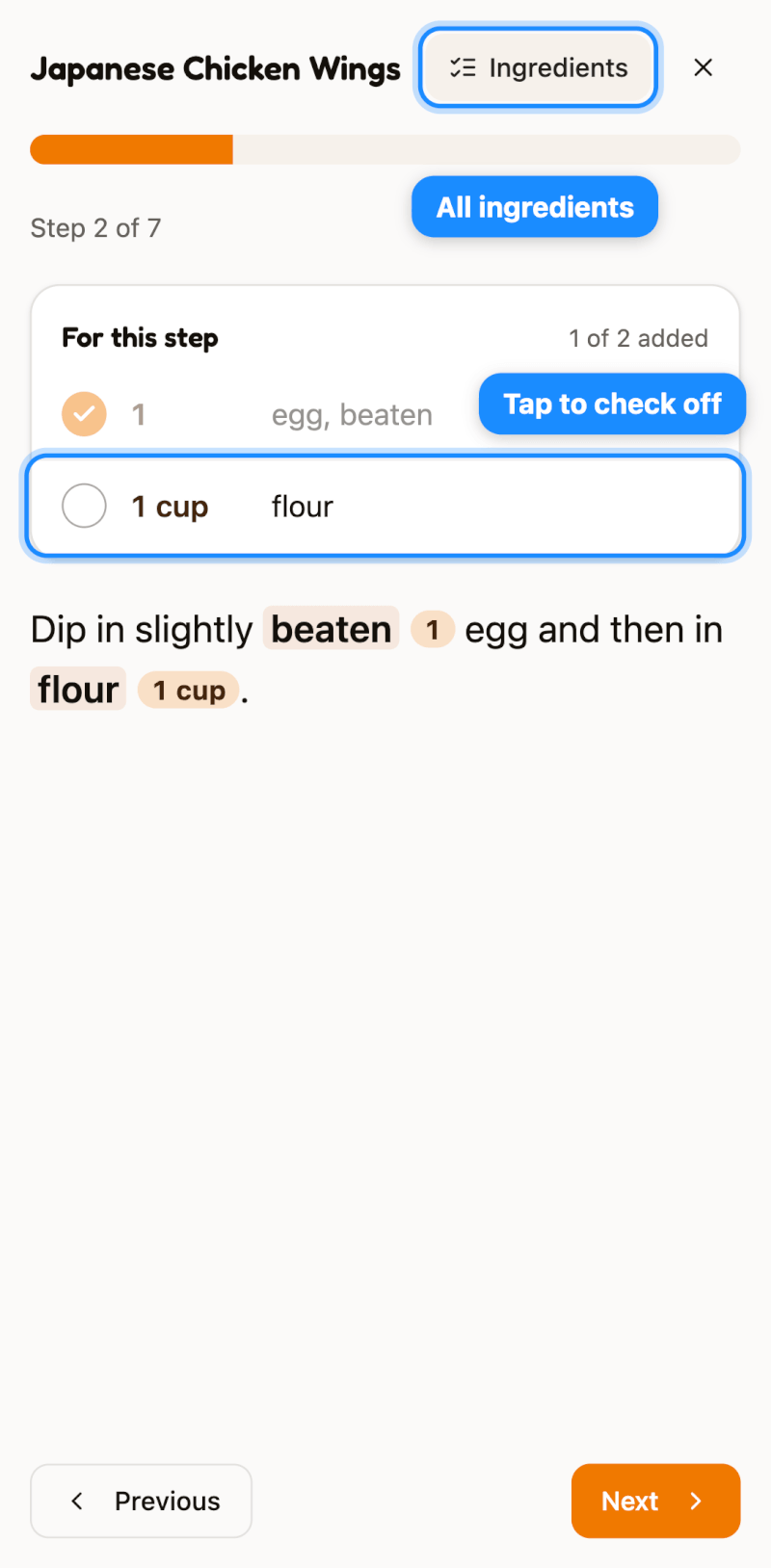
Tap Next and Previous to move between steps.
Step 3: See All Ingredients
Tap Ingredients at the top to open the full list. It shows how many ingredients you've added so far and which step uses each one. You can check off ingredients here too.
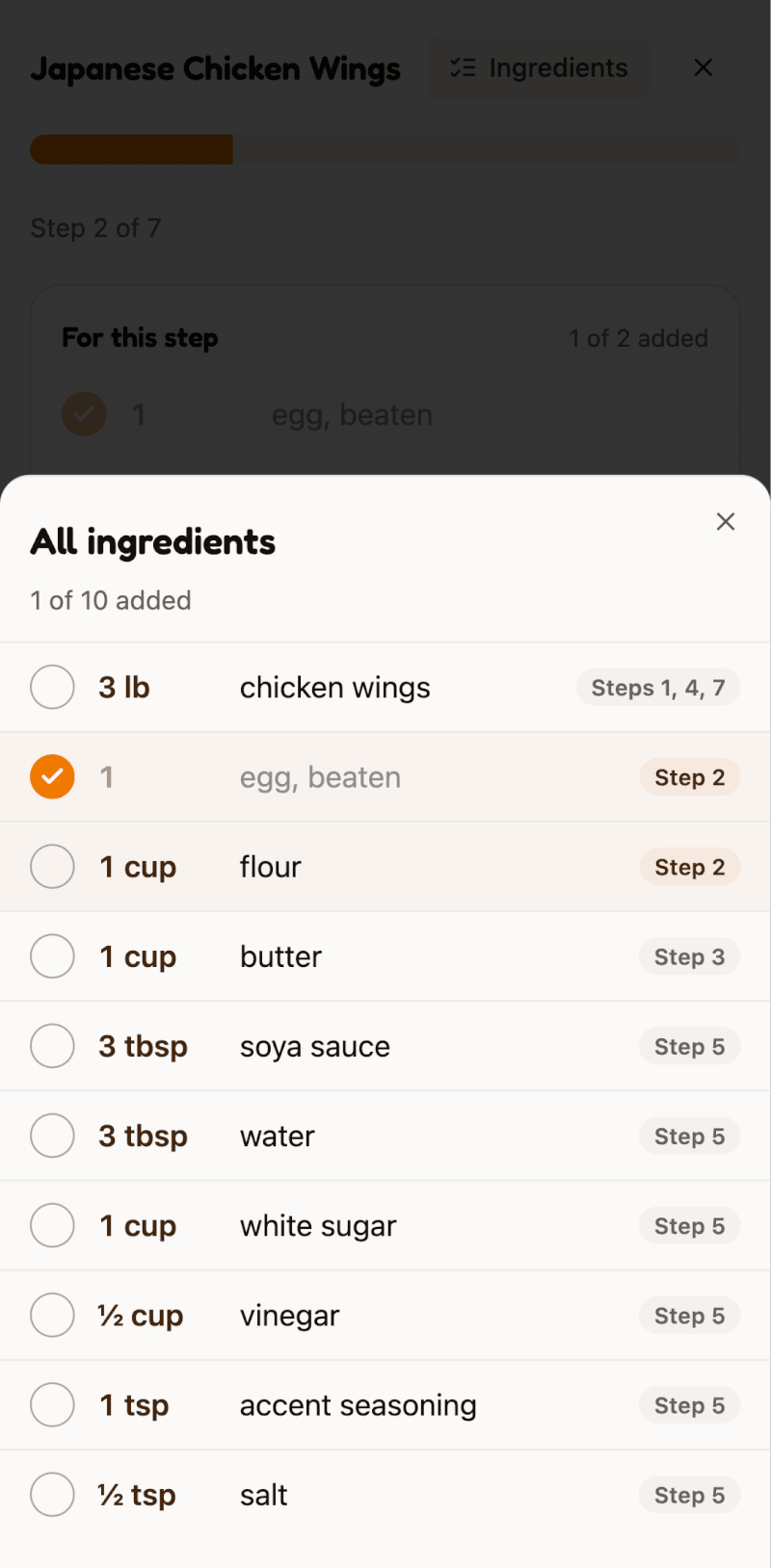
Your screen stays on while you cook, on devices that support it. When you're done, tap Done on the last step, or tap X to leave at any time.
Good to Know
- Check marks last for the current cooking session and clear when you leave cooking mode.
- Ingredients are matched to steps by name. If a step describes an ingredient differently, such as "the sauce", that ingredient won't appear on the step's card, but you can always find it under Ingredients.
- Prefer different units? Convert the recipe before you start cooking.