
Skip the cleanup later — Recipe Notes lets you pick a cookbook while you import a recipe, so it lands exactly where it belongs.
When Importing from Another App (iPhone and iPad)
When you share a recipe to Recipe Notes from Instagram, TikTok, Safari, or any other app, the Recipe Notes sheet shows a Save to card. Tap Change to choose a cookbook before the recipe is saved — you can search your cookbooks, and your Recent ones are listed first.
New to importing from other apps? Start with our guides for Instagram, TikTok, Pinterest, and any browser.
When Importing Inside the App
When you add a recipe with the + button, look for Save to before you import:
- Android and the web: Save to appears above the Import button for links, text, and photos.
- iPhone and iPad: Save to appears when you choose Type it in or Scan a photo. Recipes imported with Search the web go to your default cookbook (see below); you can move them to another cookbook afterward.
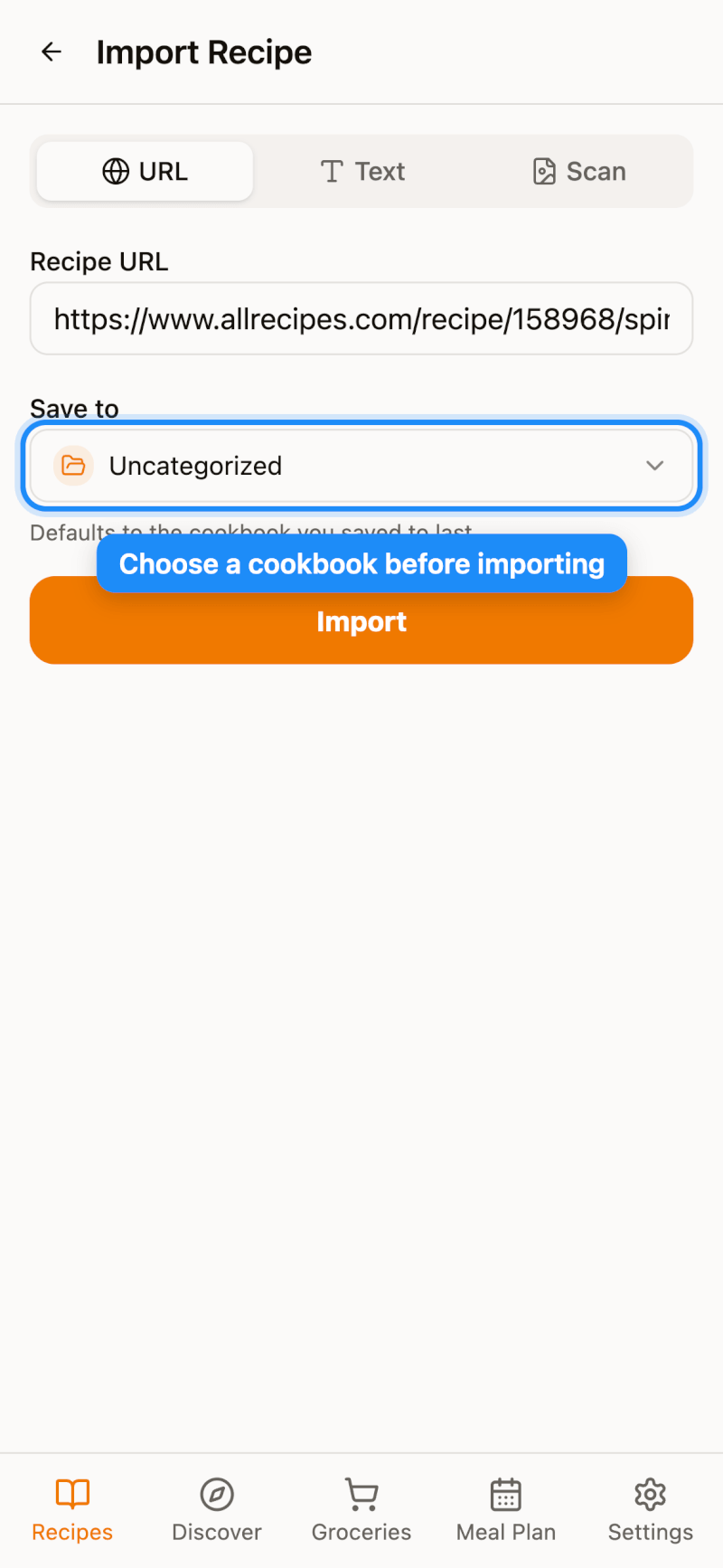
Tap it and pick any cookbook. Choose Uncategorized if you'd rather sort it later.
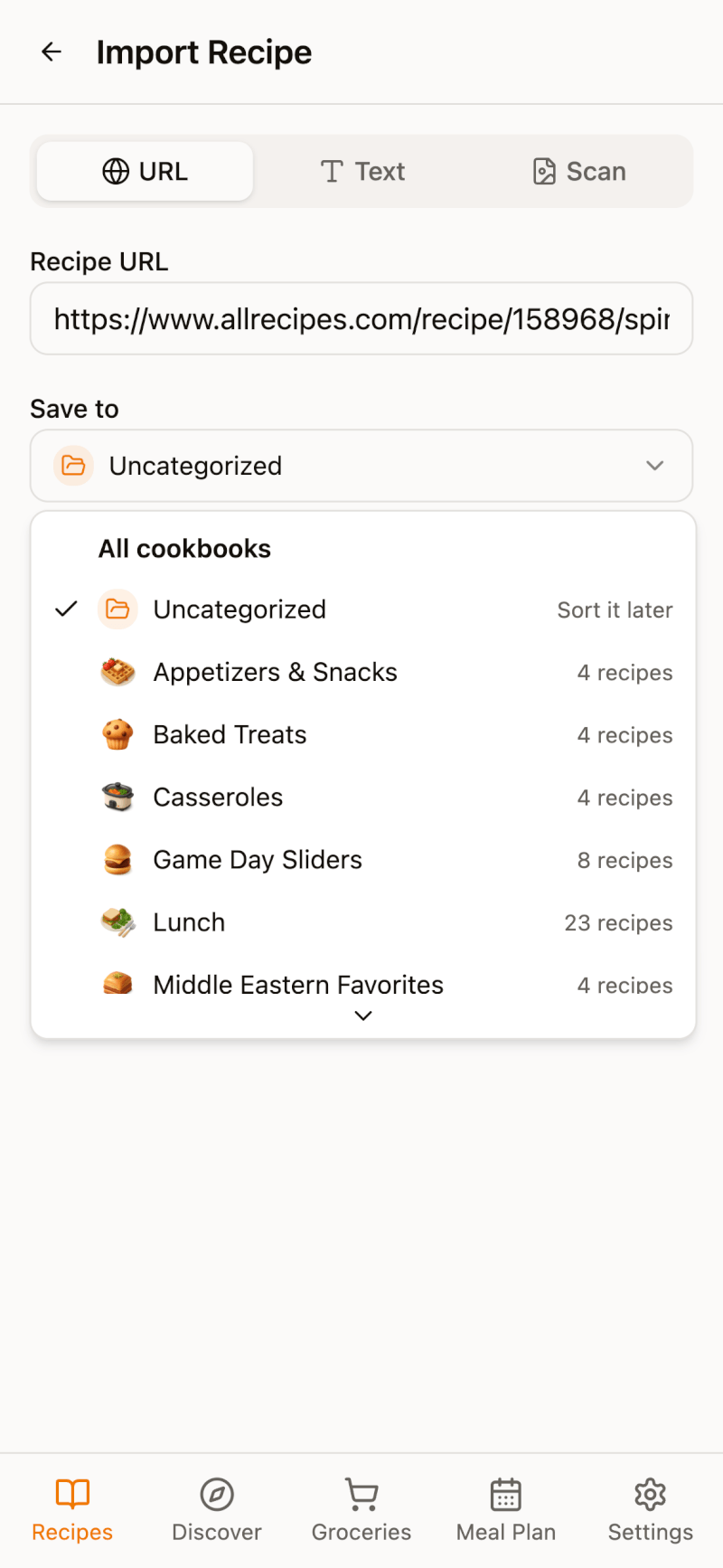
Set a Default Cookbook (iPhone and iPad)
By default, Recipe Notes remembers the cookbook you saved to last. To change that, go to Settings → Recipes & Planning → Import Preferences and tap Save Imports To. You can choose:
- Last used — keep using whichever cookbook you picked last time
- Uncategorized — save everything unsorted
- A specific cookbook — always save new imports there
You can still pick a different cookbook for any single import.
Good to Know
- You can always move a recipe later — see organizing recipes into cookbooks.
- Changed your mind mid-import? On iPhone and iPad, open the Imports queue and tap the Saving to label on an in-progress import to pick a different cookbook.