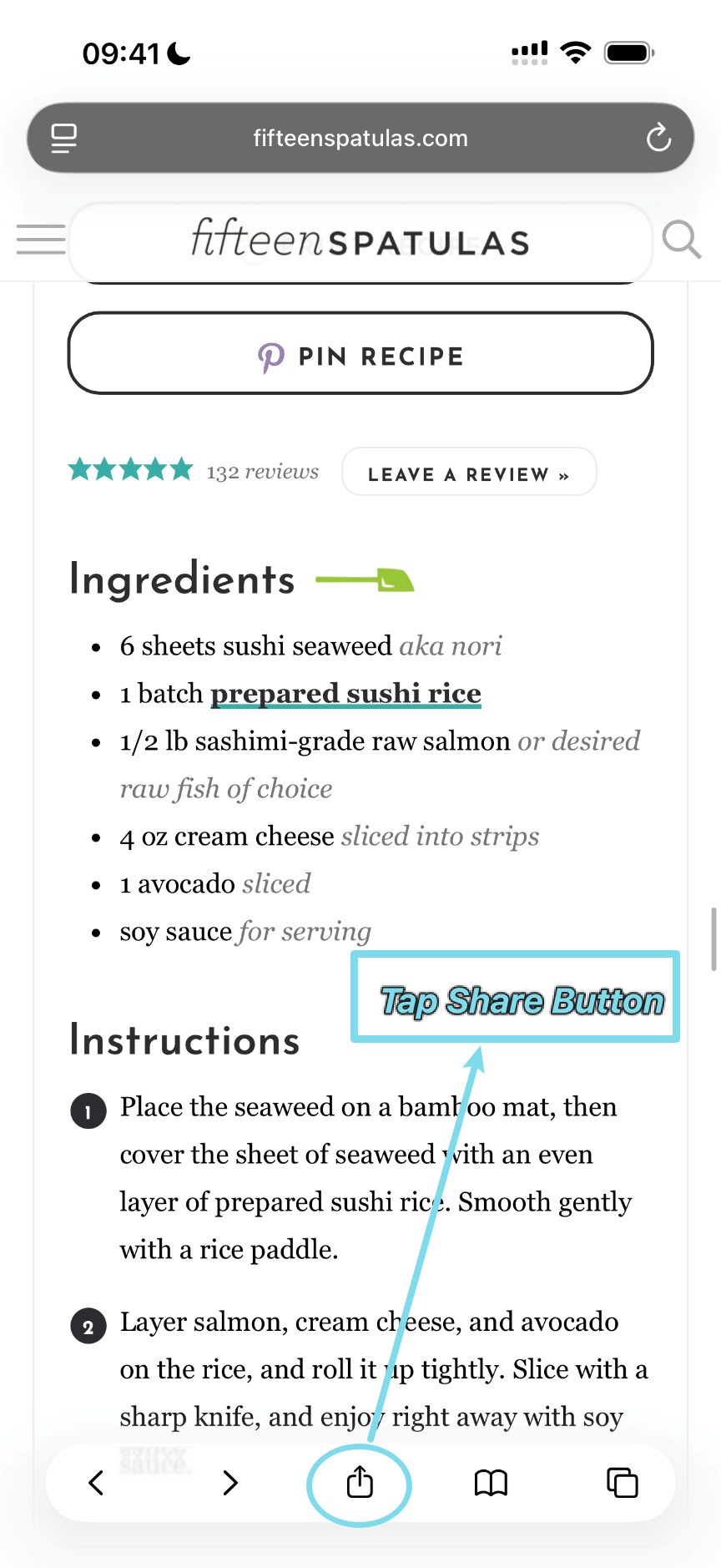
Step 1: Share from Safari
The following example uses Safari, but this works with any browser on your device.
Open a recipe page in Safari and tap the share button at the bottom of the screen.
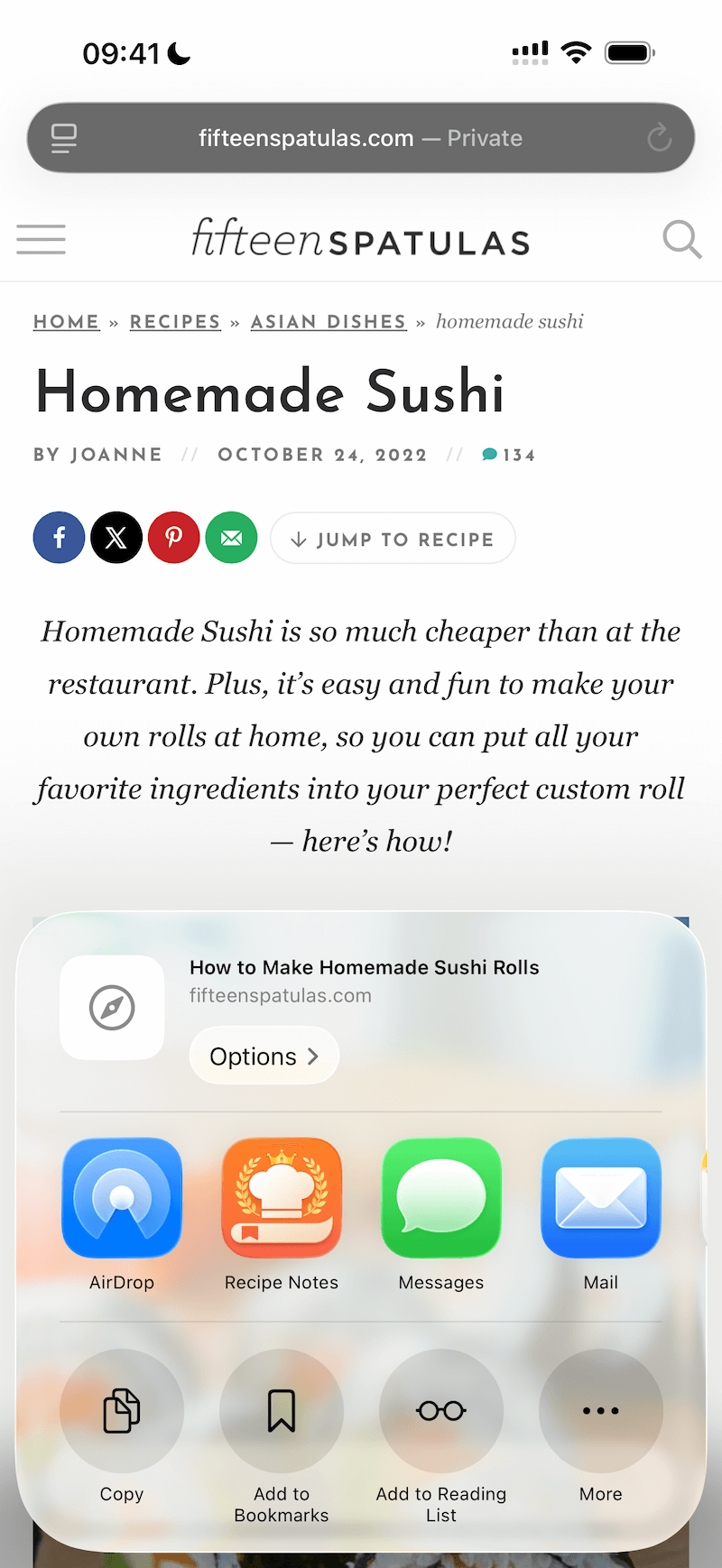
Step 2: Select Recipe Notes
Tap the Recipe Notes icon in the share sheet.
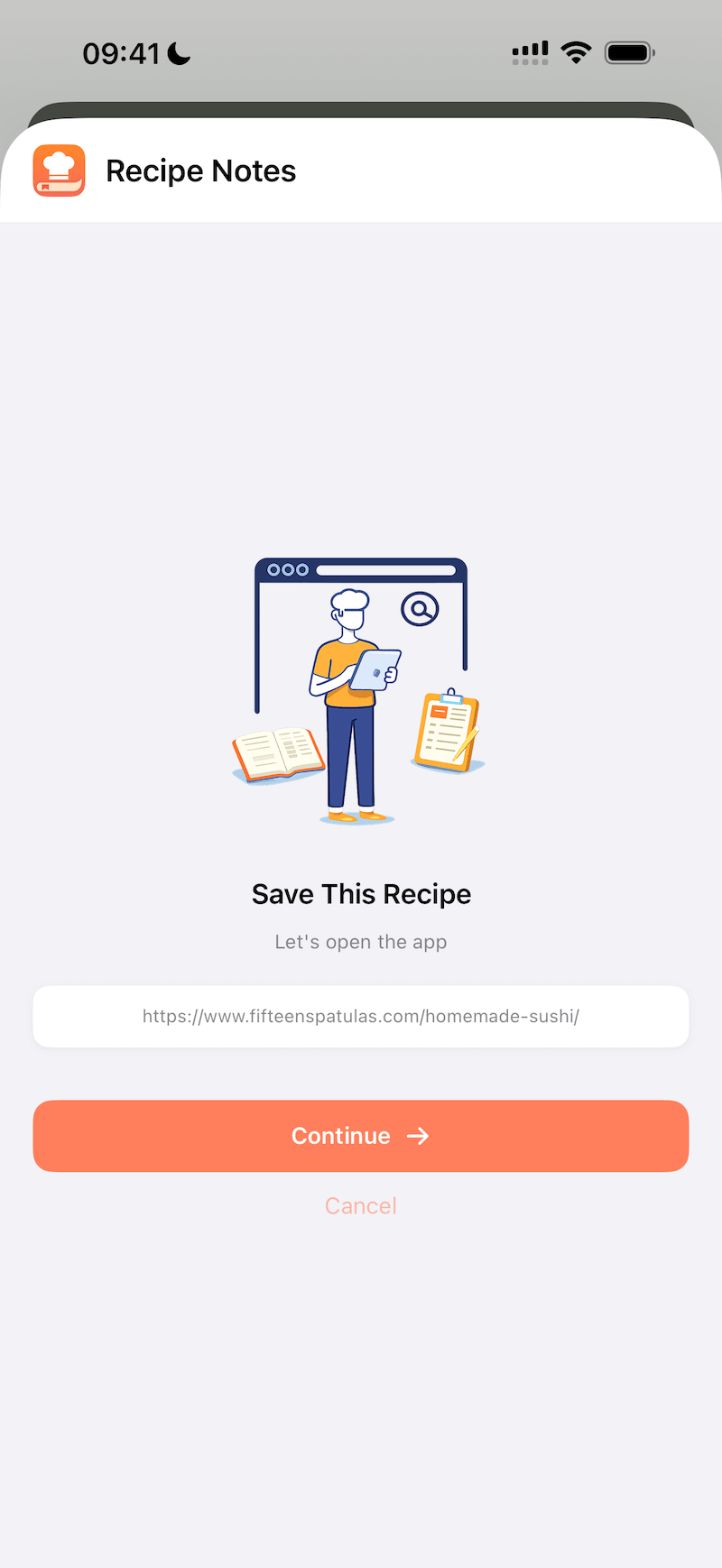
Step 3: Continue to Import
Tap the "Continue" button in the sheet. You'll be redirected to Recipe Notes' built-in browser to complete the import.
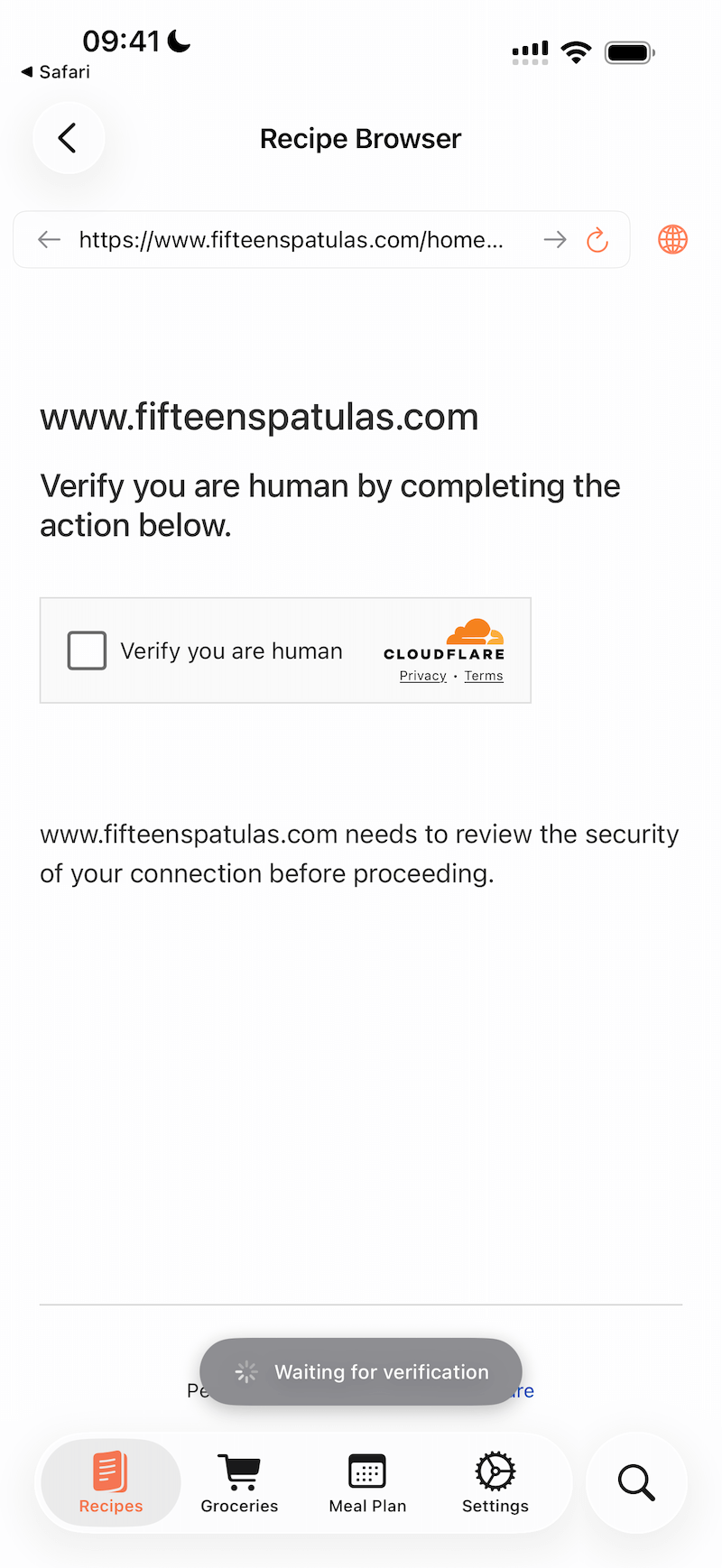
Step 4: Handle Verification (If Needed)
In most cases, the recipe will be imported automatically in the previous step.
However, if the recipe website shows a "Verify you are human" prompt from Cloudflare, simply complete the verification check. The automatic import will continue once the verification is done.
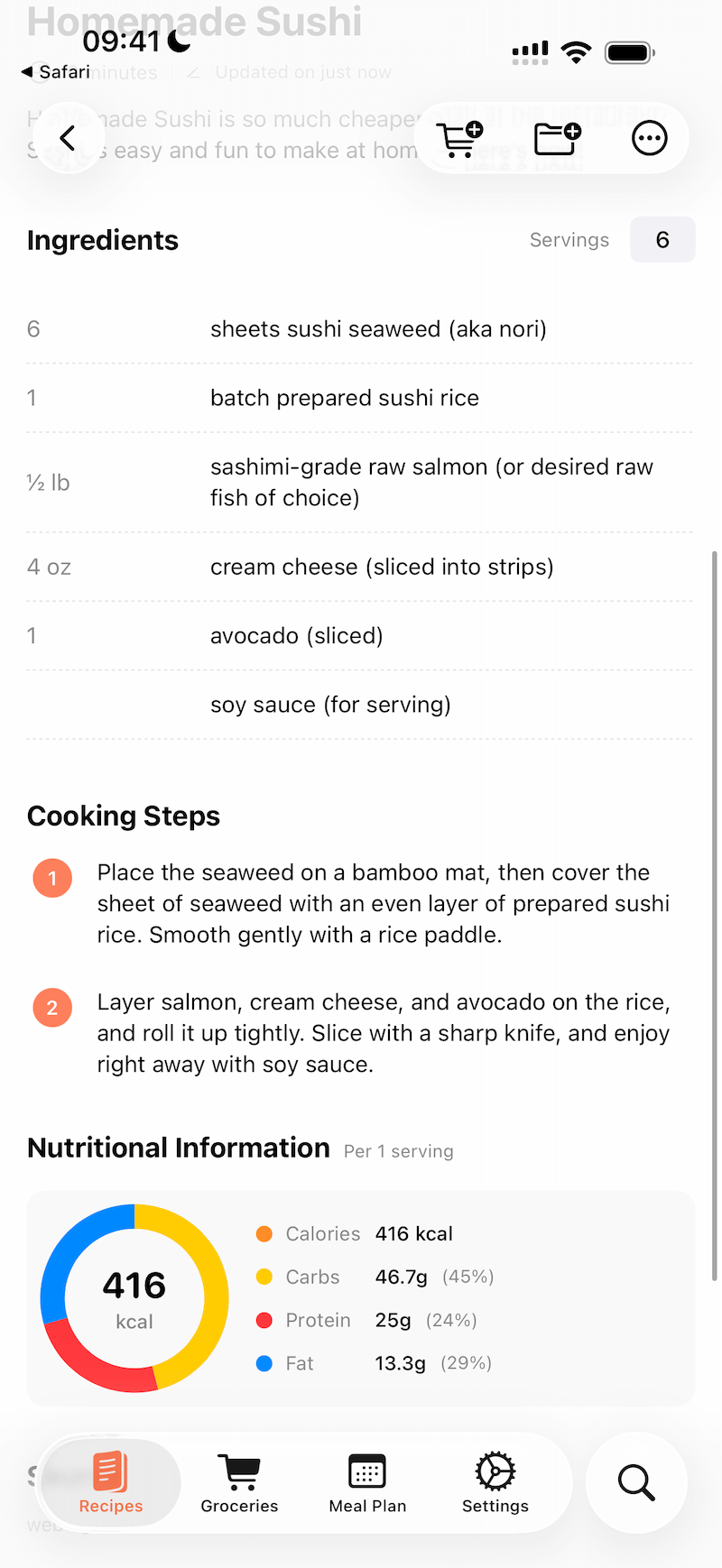
Step 5: Import Complete
Once imported, you'll be automatically taken to the recipe details page in Recipe Notes.