
Your recipes are yours. With Export Recipes, you can download your whole collection as a ZIP file — handy for a personal backup or for moving your recipes to another app.
Each export contains Markdown files you can open in any text editor, plus JSON files for importing into other tools.
Step 1: Open Export Recipes
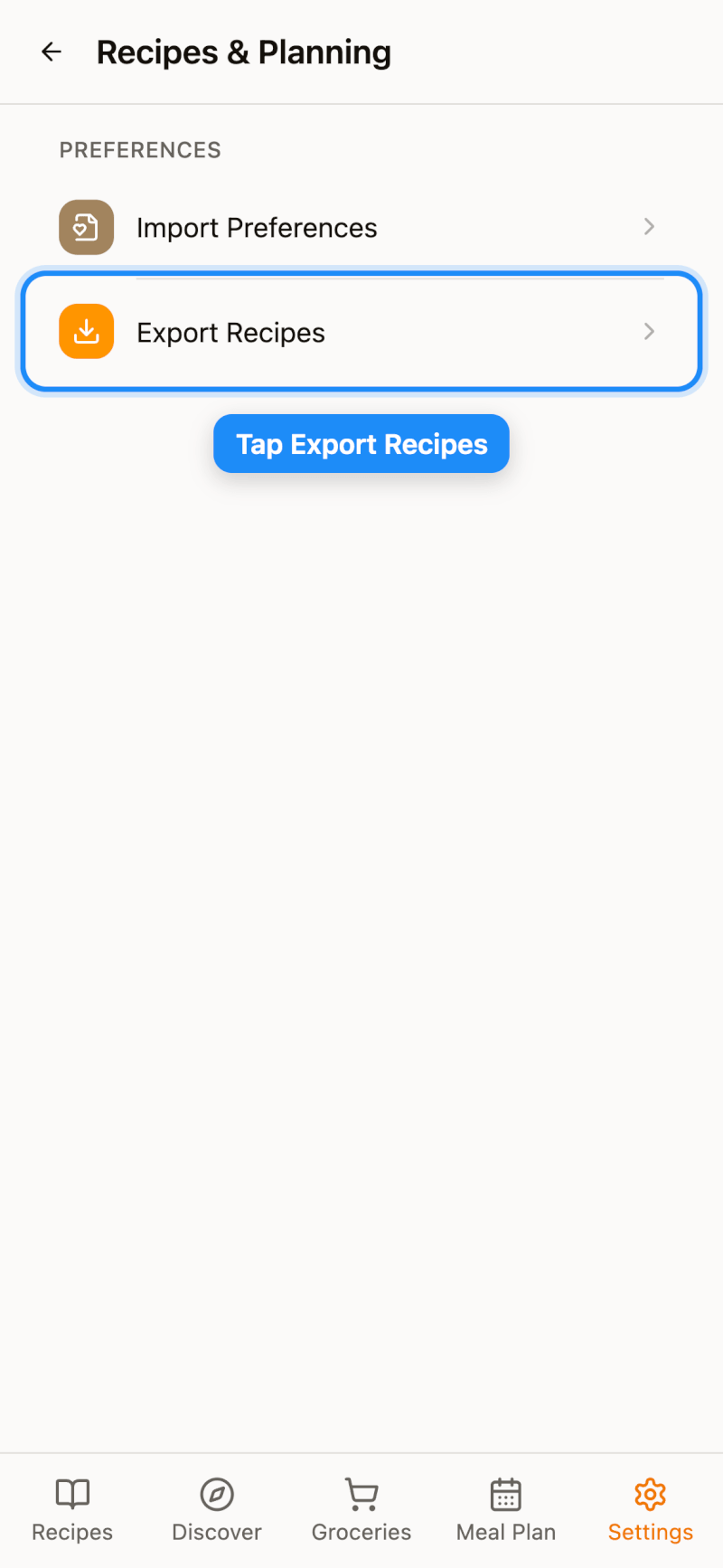
Go to Settings → Recipes & Planning and tap Export Recipes.
Step 2: Choose Whether to Include Images
Turn on Include images to save your recipe photos inside the ZIP. Without it, the ZIP only contains links to your photos, so it isn't a complete offline backup. Including images is a Pro feature.
Step 3: Start the Export
Tap Export Recipes. The page shows how many recipes will be exported and how many exports you have left this month.
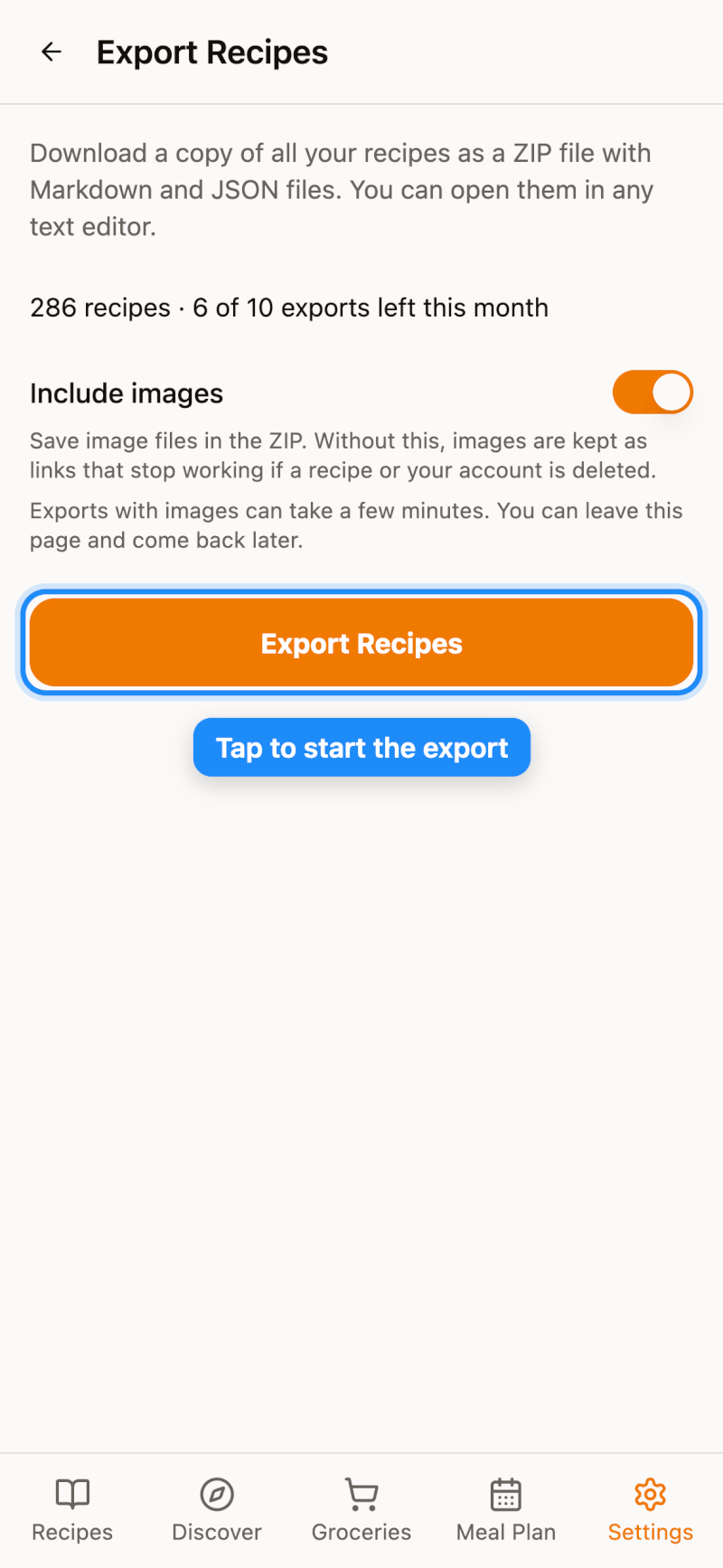
Exports with images can take a few minutes. You can leave the page and come back later — when it's ready, tap Download to save the ZIP file.
Good to Know
- Download window: each export is available for 7 days. After that, it expires and you can simply start a new one.
- Monthly limit: Free accounts can export twice a month; Pro accounts can export 10 times a month. Exports that fail don't count toward your limit.
- Large collections: a single export includes up to 5,000 recipes.
- If you start another export within a few minutes of the last one, Recipe Notes will ask you to confirm first.
Want to export a single recipe instead? Open the recipe, tap the More button (⋯), and choose Export → PDF or Markdown.