
Recipe Notes lets you act on many recipes at once, saving you time when organizing your collection.
Step 1: Enter Select Mode
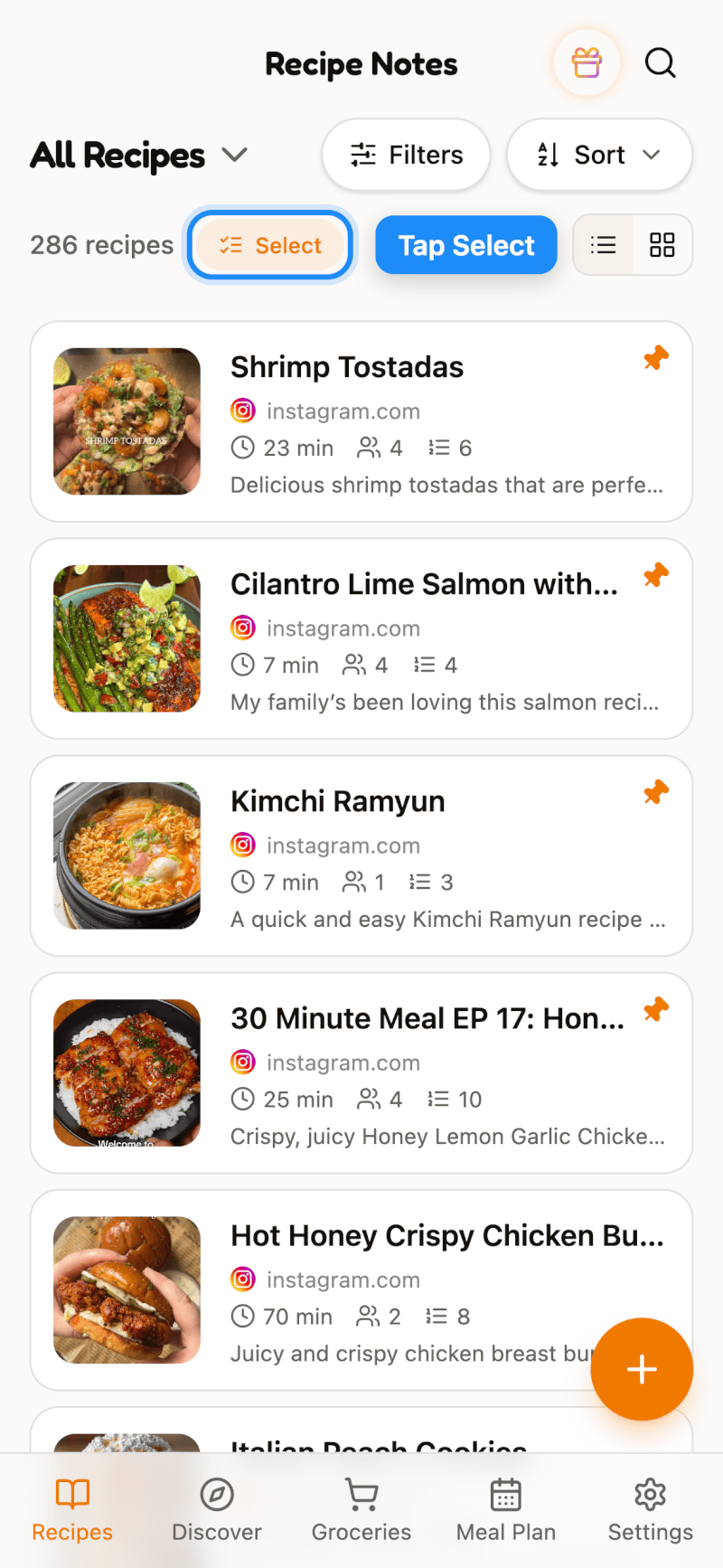
Open All Recipes (tap the view name at the top of the home screen and choose All Recipes) or the Uncategorized cookbook, then tap Select above the recipe list. Select mode isn't available inside other cookbooks.
Step 2: Choose Your Recipes
A checkbox appears on each recipe. Tap the recipes you want to include, or tap Select All in the top-right corner to pick everything in the list.
Step 3: Perform a Batch Action
Once you've made your selection, an action bar appears at the bottom of the screen:
- Add to Cookbook — add all selected recipes to one or more cookbooks in one go.
- Delete — permanently delete the selected recipes. This can't be undone.
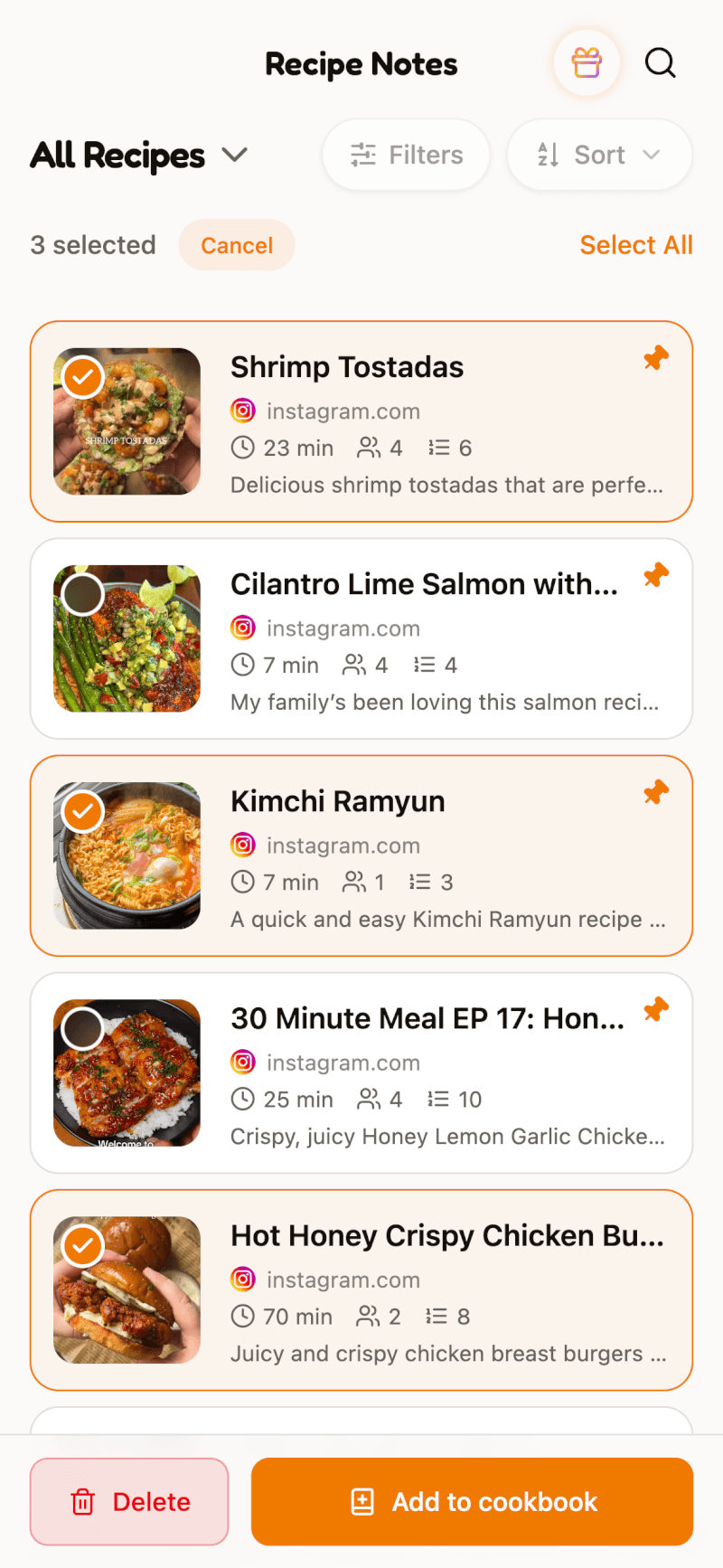
Tap Cancel at any time to leave Select mode without making changes.
Looking to Share Recipes with Your Family?
Family sharing is set per recipe from the recipe details page. See our guide on sharing recipes with the Family plan.